Thoughts on programming, web development and design.

Circuit Board

Category: Web Development Page 24 of 31

Creating a web button using vintage design

For Burlington Footwear’s website, the client wanted an old-fashioned or vintage look. I applied this design style to a button that opens the shoe club page. Vintage Design uses dark or muted colors, descriptive or cursive fonts, textures and graphics specific to your selected time period. BFW Shoe Club
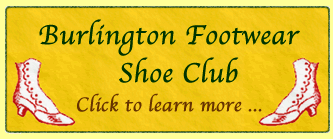
To create this look, I made the following choices:

  1. I created a background with a vintage paper look. It combines the colors yellow and green to make it look aged. Then, I added a paper texture to complete the look. I used this Fireworks tutorial to create a vintage (old) paper look.
  2. Vintage Design uses descriptive or cursive fonts. Burlington Footwear already uses a script or cursive font in its header. For consistency, I chose to reuse the font.
  3. Burlington Footwear’s website uses red and green. I choose a dark green and red because Vintage Design uses dark, muted colors. These darker colors were applied to the font and outline of the button.
  4. Vintage Design also includes using images specific to a selected time. I used the old-fashioned shoe from the logo. Since the shoe image is specific to an older time, it made sense to add it to the button. I just blended it into the background and repeated the shoe for balance.

By combining these elements together, they help to achieve the vintage look that the client was looking for.
4 jQuery techniques to add to your toolbox

Computer CodingNeed to add a lightbox, slideshow, Google Maps or Twitter to your website? Use the following 4 jQuery techniques to add these features to your next web project.

  • Simple and Quick Lightbox with CSS and jQuery A super simple lightbox feature that is easy and quick to add to your website.
  • jQuery and Google Maps This tutorial walks you through adding and modifying Google Maps with jQuery to your website.
  • SlideShow with jQuery Slideshows let you display a series of images without using Flash. This tutorial helps you to add a simple slideshow to your site.
  • jQuery and a Responsive Footer How to combine responsive design with jQuery. This tutorial shows how to create a responsive footer and use jQuery to add additional functionality to your footer.

Milwaukee WordCamp 2012

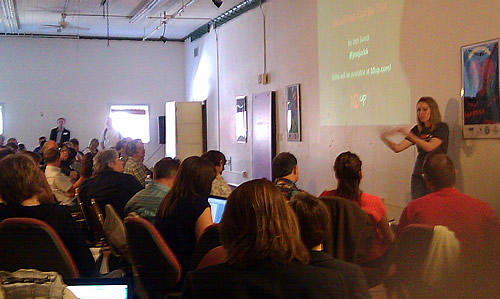
On June 2nd and 3rd, the first Milwaukee WordCamp 2012 was held at Bucketworks.org, a co-working space, located in downtown Milwaukee. Milwaukee WordCamp offered two different tracks: User and Developer. As a developer, I focused on the developer sessions. My favorite sessions were WordPress Plugins, How to Contribute to Open Source and How Not to Design like a Developer.
WordCamp Milwaukee 2012
Each presentation had something new to learn about WordPress and development.

  • Writing Your First Plug-In: Brad Parbs demonstrated how easy it is to create your first plug-in. He showed us that you can create your first one in five minutes.
  • WordPress Development Practices: Dan Pastori explained how to write a plug-in, plug-in best practices and how to test them. He even suggested having your mom test your plug-in. If she can’t figure out how to use it, then no one can.
  • Contribute to Open Source: Joel Clermont explained that open source communities needs your help to keep making it better. You can contribute to open source for “selfish reasons”: make your life easier, gain valuable experience and further your career. You can get involved in WordPress by writing documentation, fixing bugs or even testing.
  • How to Not Design Like A Developer: Tracy Apps spoke on how to design attractive looking sites. She emphasized the use of Contrast, Color, Balance and Alignment. The purpose of design is about problem-solving not just making things look pretty.

If you missed a presentation, WordCamp Milwaukee has published the presentation slides.

Code Challenge

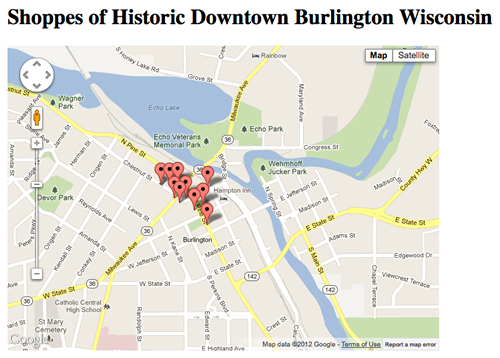
Fred Boyle challenged developers to build something, an app, in a language that they don’t normally use. Normally, I program in ASP.Net, C# and MS-SQL. For this code challenge, I decided to learn more about Google Maps and JavaScript.

I used a tutorial on jQuery and Google Maps as a starting point. Google Maps is now on version 3, not version 2 (which the tutorial uses). I picked the locations from a paper map that shows some shops in downtown Burlington, Wisconsin.

While developing the page, I ran into two issues: Missing Marker and Multiple InfoWindows not displaying.

Missing Marker
I had 11 shops and only 10 were showing up on the map. After removing most of the locations, I got the missing one to show up. I discovered that two shops share the same location (building) which means they have the same longitude and latitude. In order to show both, I had to change to code to place both shops on the same marker.

Multiple InfoWindows not displaying
I wanted to add InfoWindows so you could learn a little more about the shop. With Google Maps API V3, I ran into a problem with multiple InfoWindows. It would only show the last InfoWindow, no matter which marker I clicked on. After researching Google, I found Google Maps API V3 Multiple Markers, Multiple Infowindows. Colin Wiseman walks you through the problem and provides you with a solution. I used his solution to fix this issue.

Do you reset your CSS or normalize it?

CSSResetting your CSS means removing all built-in browser styling, so that you can avoid cross-browser differences as much as possible. By resetting your CSS, you can create a consistent look across browsers. The downside is that you end up restyling elements that you reset earlier. Which means that you duplicate effort and increase the processing time of your website.

If you don’t want to duplicate your efforts, what can you do? You can normalize your CSS. Normalize preserves useful browser settings and provides cross-browser consistency. It gives you greater control because you can include sections that are specific to your website. You don’t have to clutter your style sheets with elements that you never use on your site. This helps to cut down on the amount of code in your style sheet.

Which CSS method should you choose?

Both reset and normalize are tools to help you style your website. For example, I first built a website using reset and then changed it to normalize. When I changed to normalize, I had to make a few minor adjustment to get the normalized CSS to match the reset CSS. These minor adjustments were needed to make the website look right. As with any tools, there are trade offs. You need to choose the tools that help you solve your problems.

Page 24 of 31

Powered by WordPress & Theme by Anders Norén